
Turn your visit notes into a summary patients understand
A visit is easy to follow in the chair and hard to remember at home. Paste your notes or load a saved chart, and Zermmi writes it up in plain words, in the patient's language, for you to check before it goes out.
Included in the free account. No card needed.




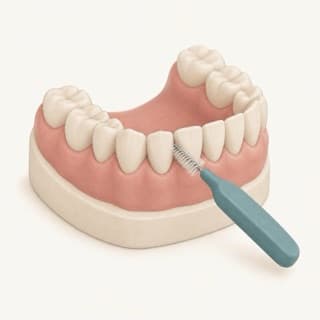
What your patient takes home
One page, organized around the questions patients ask. Only the sections your notes cover appear, and every paragraph can be edited before it goes out.
- What we found
- Findings from the exam in ordinary words, with a short definition for each clinical term, so pocket or recession means something to them.
- What we did at this visit
- The treatment done today, with a short aftercare note for completed work that you can edit or clear.
- What we discussed or planned
- What was proposed or discussed, with the patient's decision kept as you wrote it and kept separate from what was done.
- Previous treatment
- Earlier work your notes mention, kept apart from today's visit so the patient can tell the two apart.
- What to do at home
- The instructions you recorded, as you gave them. You can add a simple drawing to up to three of them.
- What happens next
- The review or next appointment your notes mention, without dates or intervals you did not write.
- A tooth map
- The teeth you discussed are highlighted on a drawing of the arch, so a tooth number becomes a place in their mouth.
- In their language
- English, French, German, Spanish, Italian, Portuguese, Thai, Traditional Chinese, Korean or Japanese, chosen separately from the language you work in.
- No patient name needed
- The summary is written without names, dates of birth or contact details, and it can be saved without linking a patient record.
How to write a visit summary for a patient
The whole flow is two screens: the visit details, then the patient explanation. Nothing reaches the patient until you print it or create a link.
- 1
Start from your notes or a saved chart
Paste or write what happened at the appointment, in your own words. Or choose a chart saved under Patients to load its measurements, recorded dental work and notes, then add what happened today.
- 2
Choose the language and the numbering
Pick the patient's language, and say whether your notes use FDI (11–48) or Universal (1–32) tooth numbers. Universal numbers are converted, and the summary shows FDI.
- 3
Create the explanation
Press Create patient explanation. If a note could mean two things, such as a crown with no status, it stops and asks you to clarify your notes rather than guessing.
- 4
Read it and edit
It opens as a preview of the patient's page. Choose Edit summary to change any paragraph or aftercare note, and add a drawing to home-care advice where it helps.
- 5
Print it or send a link
Print or save a PDF, or create a patient link that opens on any phone without an account. The explanation is saved first, and the link expires after 30 days.
Already charting in Zermmi? Visit notes, above the periodontal chart and the odontogram, keeps your notes with that chart and can start an explanation from them.
It asks instead of guessing
A visit summary is only useful if it says what actually happened. When your notes leave the status of a treatment open, you are asked before anything is written for the patient.
- Nothing you did not write
- It is set up not to add diagnoses, medicines, doses or follow-up dates that are not in your notes, and to keep negations and undecided plans as they are.
- You have the last word
- Every paragraph can be edited before you print or share. It is your summary of the visit, so read it before it goes out.
- Change the notes, start again
- Editing the notes or the tooth numbering clears the explanation, so a summary never mixes old notes with new ones.
On paper or as a link
Hand it over at the desk, or send it after the visit. Either way the patient reads the same page, with the same tooth map and drawings.
- Print or save a PDF
- The printed page carries the explanation, the tooth map and any drawings, and none of the editing controls.
- A link that opens on any phone
- The patient needs no account and nothing to install. The page opens in the language you chose, whatever their phone is set to.
- Expires after 30 days
- Each link stops working 30 days after you create it, and Disable link ends it sooner. Deleting the explanation disables its link too.
- Edits need a new link
- Saving a change turns the old link off, so a patient never sees a version you have not shared. Create a new link after editing.
Questions about visit summaries
- Is it included in the free account?
- Yes. Explain this visit is part of the free Zermmi account, with no card needed. There is a daily limit on how many explanations and drawings one account can create.
- Which languages can the summary be written in?
- Ten: English, French, German, Spanish, Italian, Portuguese, Thai, Traditional Chinese, Korean and Japanese. You choose the patient's language for each summary, whatever language you work in.
- Do my notes need a special format?
- No. Write them the way you normally do, up to 12,000 characters. Say whether your tooth numbers are FDI or Universal and the rest is handled for you.
- Can I use notes from my practice management software?
- Yes, by copy and paste. There is no direct connection to other software. Check pasted notes for names or other identifying details before you create the explanation.
- What happens to the notes I paste?
- They are sent to our text-processing provider to prepare the explanation, as set out in the privacy policy, and they are not saved with it. What you save is the explanation itself. Notes written in a chart's Visit notes are saved with that chart.
- Why does the summary show FDI numbers when my notes use Universal?
- The patient page always labels teeth with FDI numbers, beside a drawing of the arch that shows which teeth are meant. Universal numbers in your notes are converted.
- What does the patient need to open the link?
- Only a browser. The link opens without an account, on a phone or a computer, and the page can be printed from there.
- Can I take a link back?
- Yes. Disable link turns it off at once, and deleting the explanation does the same. Links also expire after 30 days. A copy that was printed or downloaded cannot be recalled.
- Does it replace talking to the patient or a consent form?
- No. It is a written summary of what you have already explained, for the patient to take home. It is not a consent form, a treatment plan or the clinical record of the visit.
Explain your next visit in plain words
Create a free account, paste the notes from your last appointment, and see the page your patient would take home.
Create a free account